

How to update an employees information
Use an employee’s profile to review and update their workspace information. Only update records you are authorised to manage, especially bank, tax and identity information.
Switch to the correct workspace, open Employees > Employees, and search for the employee. Open their record.
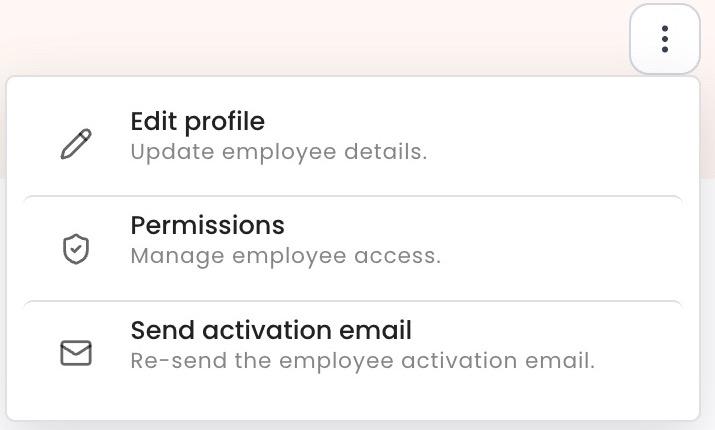
Choose Actions (…) > Edit profile. The Edit profile information drawer opens. You can also use the edit icon in an editable profile section.
Review the relevant fields and change only what is required. Some information can be inherited from the person’s Dashify profile or restricted by your permissions.
Select Save changes, wait for the success message and review the saved values. If validation prevents saving, correct the highlighted fields before trying again.
Use Permissions rather than Edit profile when changing the employee’s access role. Workspace information and the person’s own Dashify account profile are not the same thing.