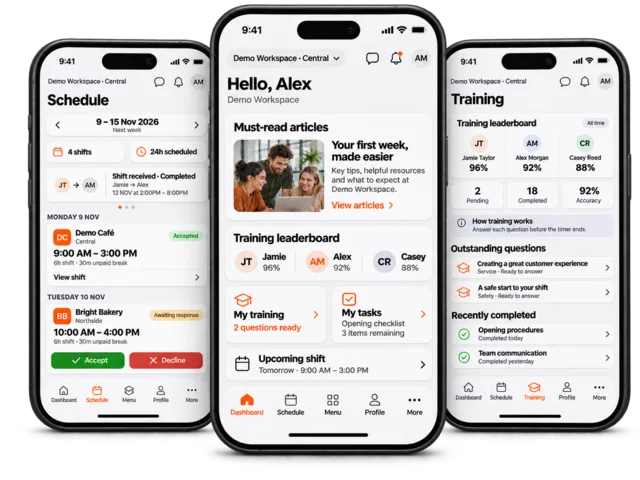


Clock in and out
Staff can clock in, clock out, record breaks, and complete shift activity from the kiosk time clock app.

Dashify for Cafes
Keep rosters, ingredient checks and the daily routine in view, instead of piecing the cafe day together from group chats and separate stock sheets.
Start with the opening-to-closing workflow, then connect attendance, supplier orders and reporting as your team needs them.
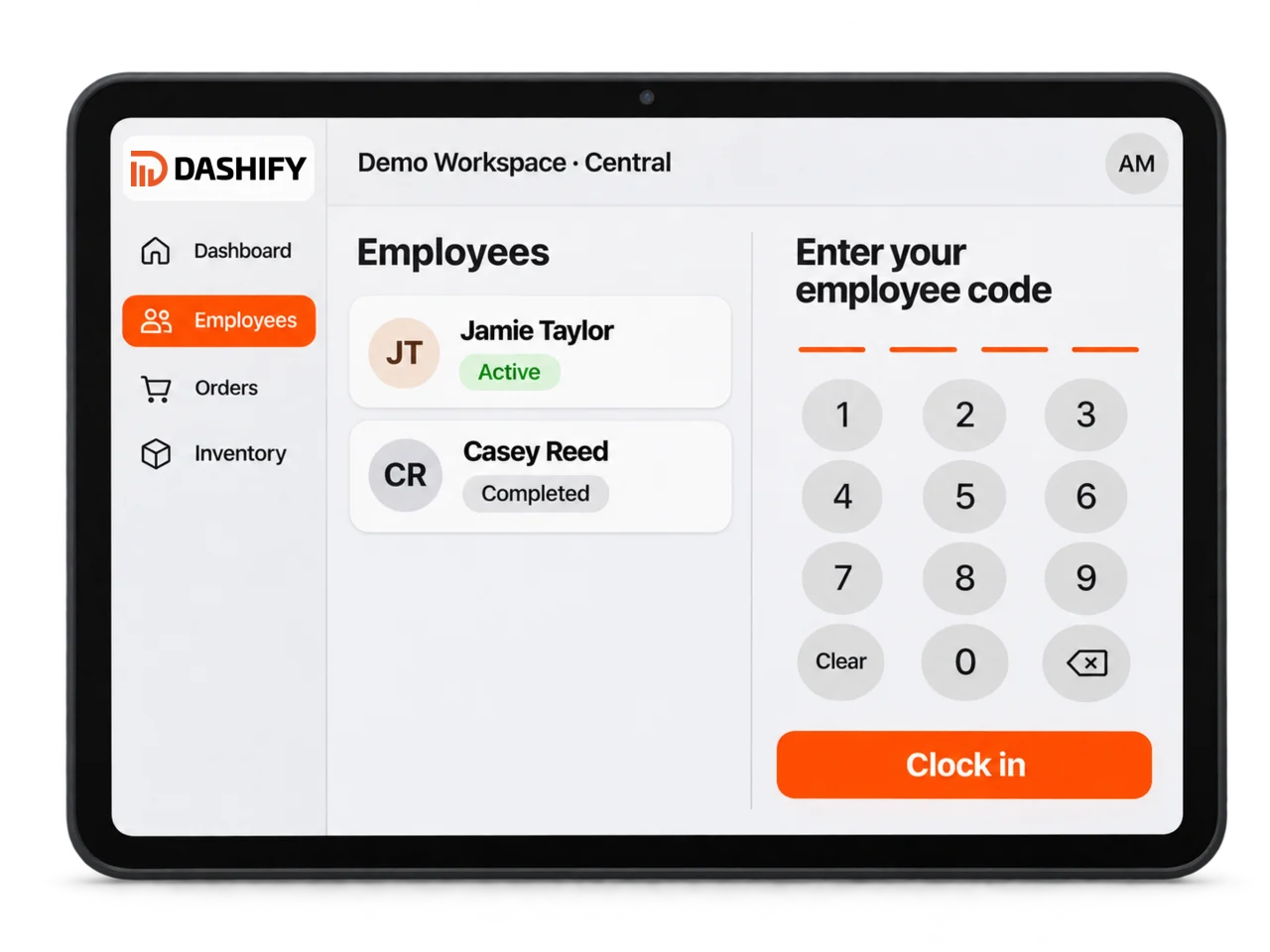
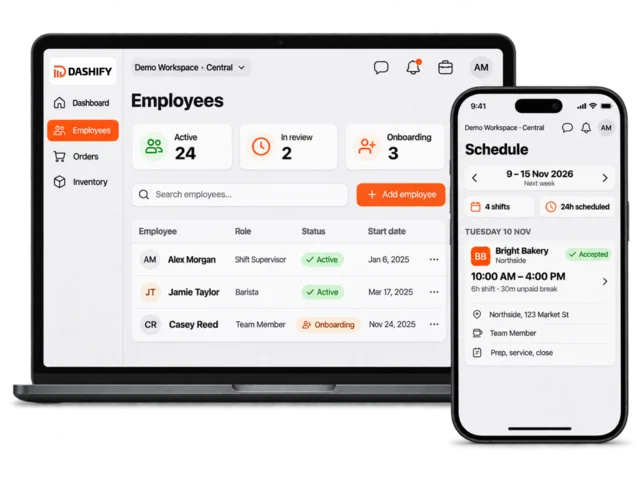
Use kiosk clock-in workflows, shift approvals, rosters, breaks, and attendance records in one place.
Manage stock validation, stock usage, low inventory, supplier orders, and cafe supplies across locations.
Use tasks, SOPs, training, cash management, and reporting to keep daily cafe routines visible.
Cafe workflows
Cafes need reliable staff, accurate stock, clear procedures, and fast daily reporting. Dashify connects these workflows for owners, managers, and employees.
Staff can clock in, clock out, record breaks, and complete shift activity from the kiosk time clock app.
Build weekly rosters, estimate labour costs, manage open shifts, swaps, declines, and approvals.
Track ingredients, packaging, milk, coffee, cups, lids, and supplies through stock validation and usage workflows.
Create supplier orders, replenish stock, and keep inventory movement connected to purchasing activity.
Make opening procedures, closing checklists, recipes, cleaning tasks, and policies accessible on mobile or kiosk.
Capture cash management, daily store activity, sales visibility, labour, and task completion for better accountability.
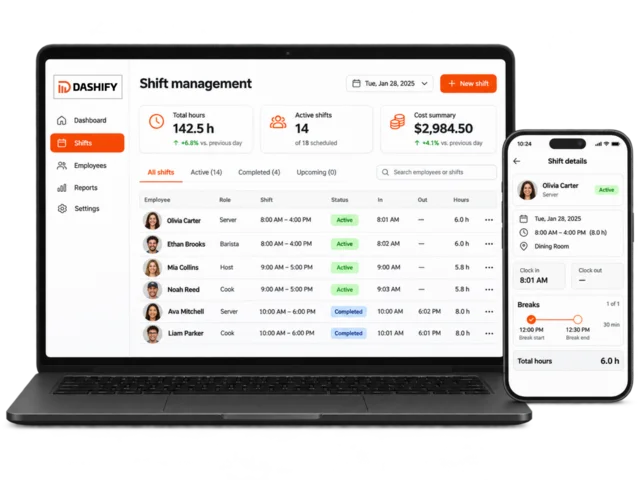
Shift and kiosk workflow
Dashify gives cafes a clearer way to manage clock-ins, breaks, shift approvals, staff tasks, and kiosk activity.
Managers can keep attendance records connected to rosters while staff use simple mobile and kiosk tools for the actions they need each day.
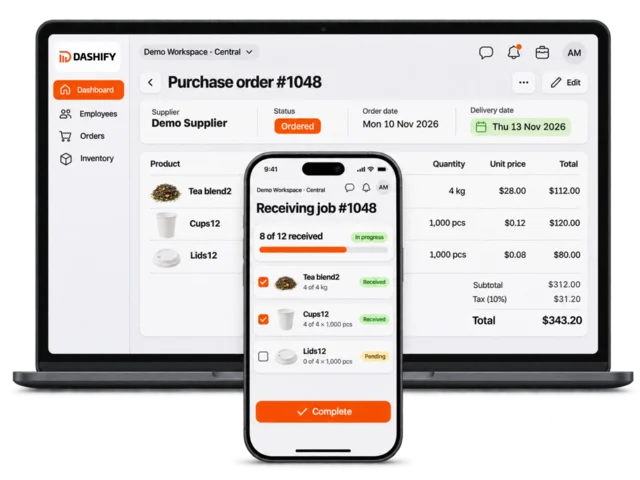
Inventory and supplier ordering
Small stock issues can quickly affect service. Dashify helps cafes keep stock, usage, supplier orders, and reporting more visible.
Owners can use stock checks, low inventory visibility, supplier order workflows, and reporting to reduce manual tracking and make better purchasing decisions.
Cafe operations
Dashify can connect rostering, clock-ins, kiosk, training, SOPs, inventory, supplier orders, cash management, reporting, and custom workflows.
Before you choose
For cafe owners keeping rosters, ingredient checks and daily tasks in separate places.
A workflow to try: Review the roster, record attendance and complete an opening stock check before service.
Do not assume it does. Identify the operational tools you need and check any POS data or integration requirements separately.
Choose one recurring problem, such as rosters or stock checks. Test that workflow with the team before introducing additional modules.
Available tools depend on your plan, enabled modules, settings and permissions. Compare plan inclusions or talk through your requirements.
Try the workflow