




Create articles for internal use
Create internal articles for SOPs, training instructions and reference guides. Keep each article focused on one task and use a clear title, short summary and readable instructions.
Before creating an article, switch to the correct workspace and check that you have permission to write articles.
Before we get started ensure you are logged into Dashify with the right access levels, if you don't have sufficient permissions please contact your system administrator.
Open Articles from the Workspace menu and select Create.
Enter the Title, Summary and Description, and choose a Category where appropriate. Use headings, lists, links and images in the editor to make the instructions easy to follow.
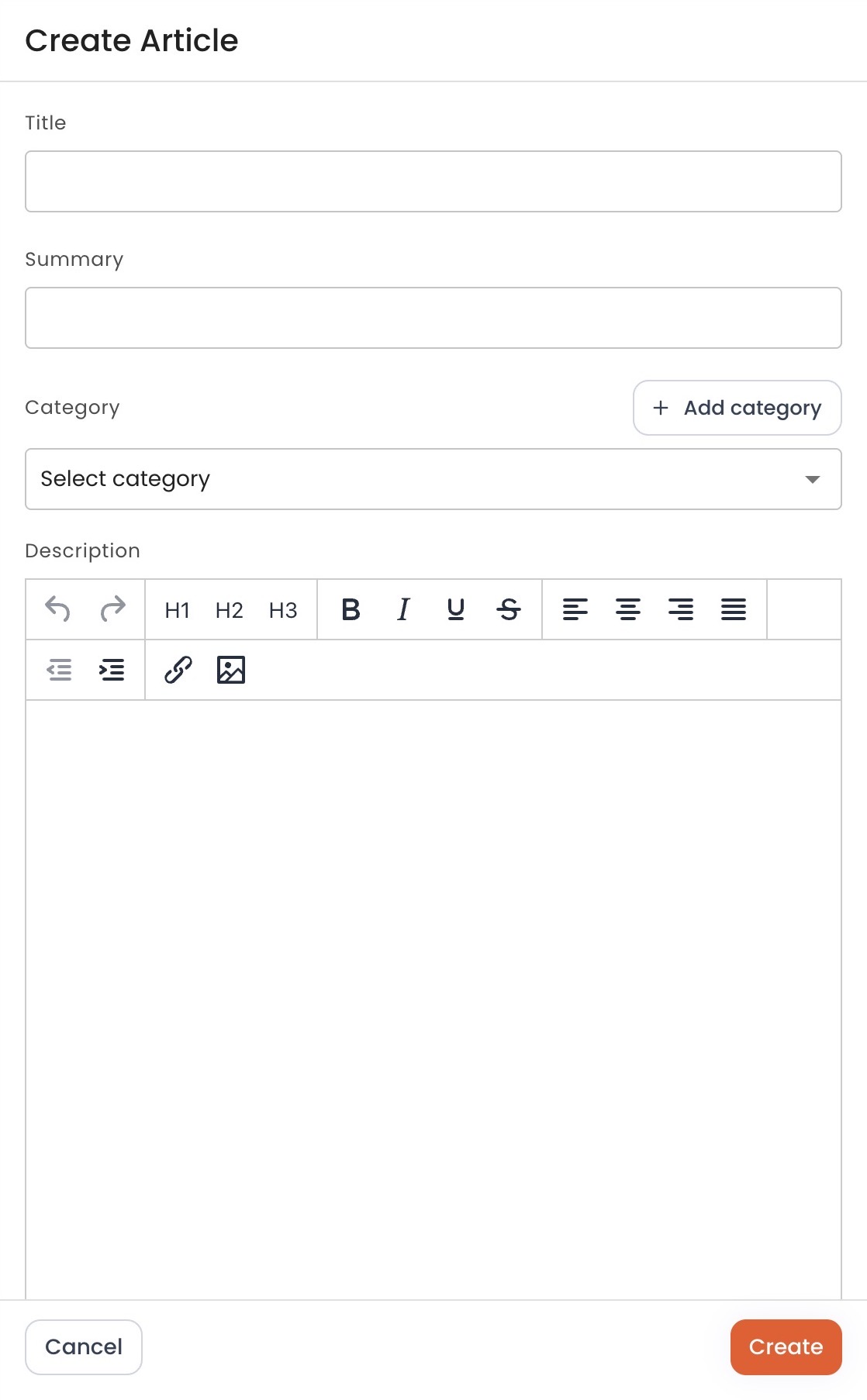
Select Create and complete any confirmation shown. Wait for the article to open or for a success message before leaving the page.
Open the saved article and check its text, formatting and images. Use its edit controls if corrections are needed.
Viewing articles on the Kiosk
Employees can open Articles on the Kiosk and select an article to read. Availability depends on the workspace and their access. See Viewing Articles on the Kiosk App.
If an article is marked as required reading, employees should follow the acknowledgement and any eligible linked-question prompts shown in their app.