


How to login to the Dashify App
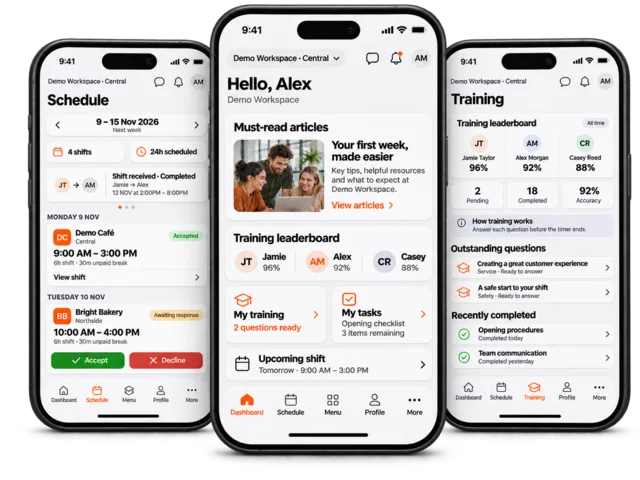
Business owners, managers and employees use their own Dashify account to sign in. What appears after sign-in depends on their workspace, role and enabled modules.
On the website, open app.dashify.com.au, or select Log In on the Dashify website. In the mobile app, select its sign-in button.
Complete the sign-in screen using the email address and sign-in method associated with your account. Use the password-recovery option on that screen if you cannot remember your password.
Complete email verification if requested. After signing in, choose the workspace you need using the workspace selector.
If an expected workspace is missing, confirm you used the same email address that received its invitation. Ask the workspace administrator to check your invitation and employee status.
Do not create a second account just because a workspace is missing. Your personal account password is separate from the shared Kiosk credentials and your employee Kiosk PIN.