


Create an event and review its booking availability
Events are managed separately from ordinary booking availability. Your workspace must have the relevant booking functionality enabled, and your role needs access to create or manage events.
Check that events are enabled for the booking widget. If the switch is off, follow the guide to enable events before publishing an event.

Open Bookings > Events and choose the create action.
Enter the event details and the available pricing and descriptive information. Check all required fields before saving.
Review Booking settings and the event’s availability options. Check the intended dates, times and limits rather than assuming ordinary opening hours are sufficient.
Save the event using the available create action, then open the saved record and confirm its details and availability.
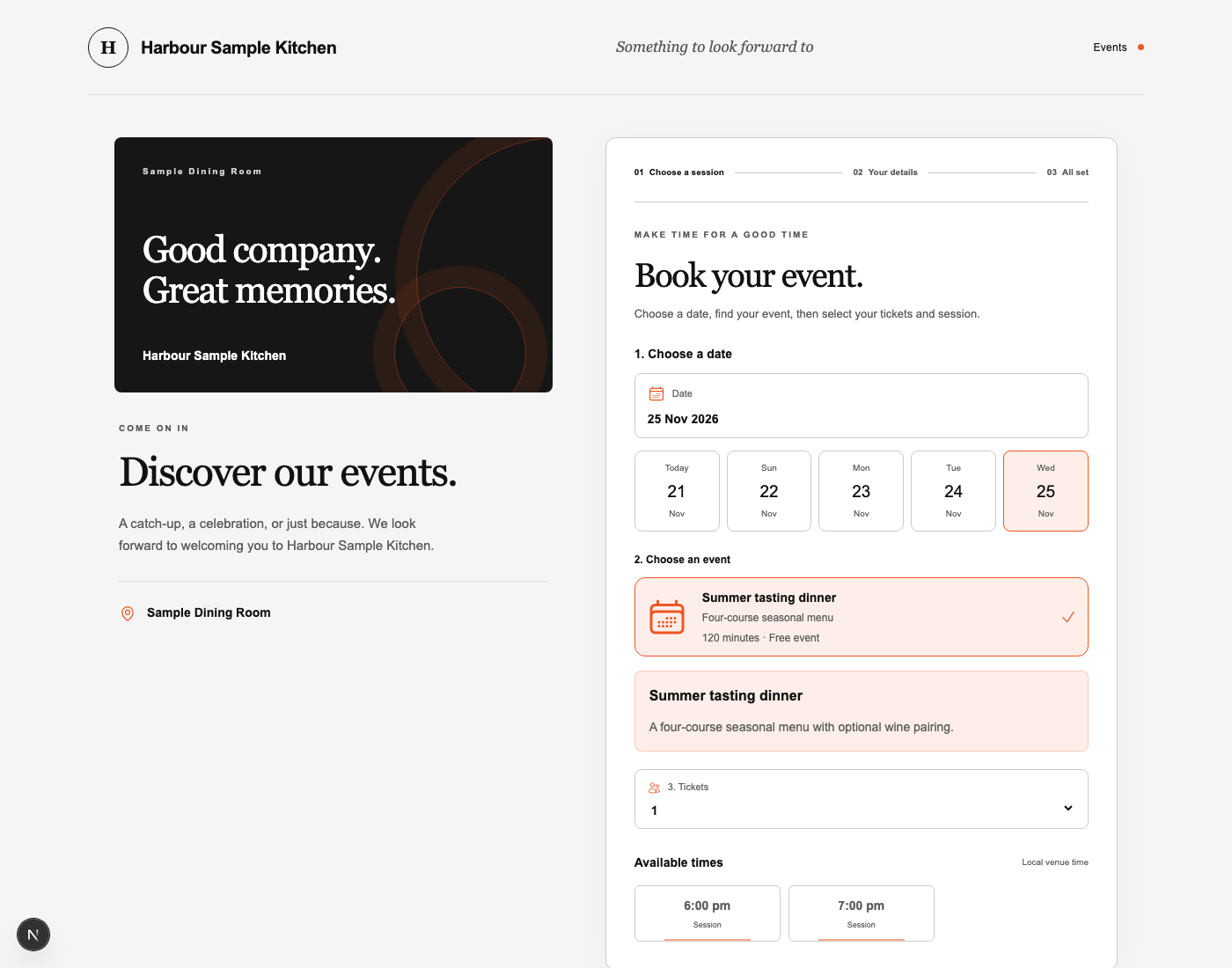
Check the customer-facing booking widget for the intended dates. If the event is not available, review the event’s status, booking settings and the global events setting.
Before accepting bookings
Preview descriptions, dates, prices and any deposit settings carefully. Enabling the global events function alone does not create an event or guarantee a particular time is available. Test the intended customer path without making unnecessary live bookings.
Check bookings for a one-night tasting
A restaurant is planning a Friday tasting. The manager confirms events are enabled, creates the event, and checks Friday’s date and capacity in its booking settings. They preview the public widget to confirm it offers the intended session before sharing the link.